Using the Elcometer 456 Correctly: Measuring, Calibrating & Documenting Coating Thickness Reliably
This guide shows you a field-proven workflow for the Elcometer 456 – from probe selection and calibration to clean data documentation. Goal: fewer measurement errors, faster approvals, and robust inspection reports.
Quickly Find the Right Setup
In 5 minutes: Select probe, calibrate, set measurement mode, activate limits, and get started.

Product Overview: Models, Probes & Typical Applications
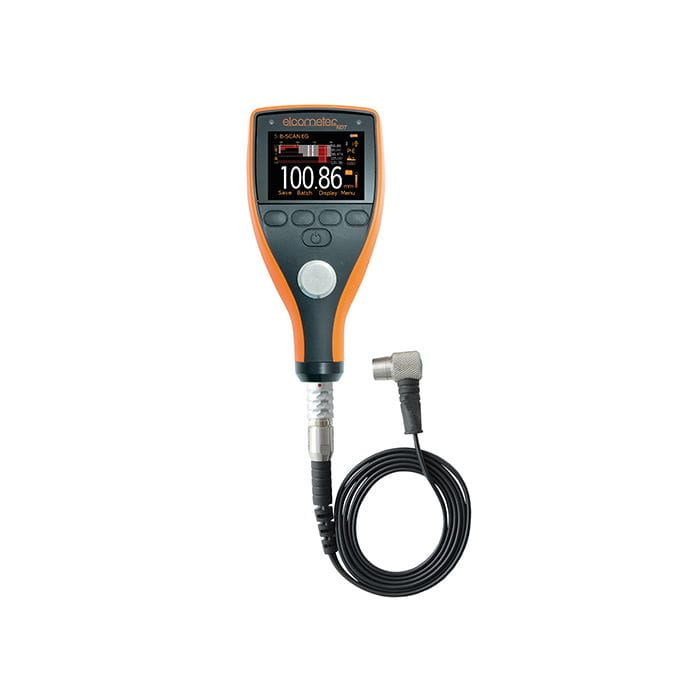
The Elcometer 456 is available in several versions (e.g., Models B, S, and T). Depending on the version, functions such as data storage, limit display, graphs, and data transfer (USB/Bluetooth) are available to you.
| Component | Options / Variants | Practical Benefit |
|---|---|---|
| Substrate & Probe | F (Steel/ferromagnetic), N (Non-ferrous metals), FNF (Dual with auto-detection) | Fast, correct measurement without "wrong material" errors |
| Probe Designs | Straight standard probes, mini/edge probes, waterproof probes, scan probes, "Thick Coatings" up to 31 mm | Suitable for geometry, surface, speed, and thickness range |
| Measurement Modes | Standard, Auto-Repeat, Scan (depending on probe/version) | Individual measurement or fast surface inspection |
| Data & Reports | Batch management, bar chart/graph, export via ElcoMaster (USB/Bluetooth depending on model) | Audit-proof documentation & fast customer reports |
Note: Available measurement modes depend, among other things, on the Ultra/Scan probe used.
Probe overview (F/N/FNF), designs, and temperature limits (e.g., 80°C standard, 150°C separate F-probes, 250°C Hi-Temperature PINIP – each refers to substrate temperature) according to the manufacturer's site.
KPI Boxes: What You Improve with the Right Setup
- Briefly clean the measuring point beforehand (dust/filler residue causes errors).
- Guide the probe by the grip/sleeve and place it vertically.
- For series measurements: Lift the probe and place it down again – do not drag it across the surface.
Recommended Basic Settings (Guidelines)
The following settings are field-proven guidelines. Deviations are possible depending on the standard, coating system, substrate roughness, and probe type.
| Goal | Recommendation (Guideline) | Where to Set |
|---|---|---|
| Units | µm as standard (mils/inch only if specified by the customer) | Menu → Setup → Units |
| Measurement Mode | Standard for single points; Scan/Auto-repeat only with Ultra/Scan probe | Menu → Setup → Reading Mode |
| Calibration Method | Smooth (2-point) for smooth surfaces; Rough/2-point for blasted/rough substrates | Cal → Cal Method |
| Counted Average | If standard/test plan requires: ISO set uses 5 readings; SSPC PA2 sets 3 readings | Batch Type / Statistics (device dependent) |
| Limits | Activate lower/upper limit (according to spec); "red" marks outliers | Menu → Set Limits / Batch Limits |
Extra: NAVSEA mode exists (device dependent) and defines a specific resolution/display around 254 µm.
Professional Workflow (5–7 Steps)
- Define Probe & Substrate Type: F, N, or FNF (Dual with auto-detection) suitable for steel/non-ferrous/mixed components.
- Check Firmware/Status: Connect via ElcoMaster before first use and regularly to install updates (USB).
- Select Calibration Method: Zero/Smooth for smooth substrates, Rough/2-point for rough/blasted surfaces; stack foils if necessary.
- Calibrate: Press Cal → Calibrate → Place probe centrally on foil(s).
- Perform Measurement: Hold probe by the grip/sleeve, place down gently and vertically, lift & place again (do not drag, do not "hover").
- Use Batches & Limits: Start a batch, activate limits, optionally select counted average (e.g., ISO/SSPC setups).
- Secure Data: Archive/report readings via ElcoMaster (PC); depending on model via USB or Bluetooth.
Troubleshooting: 4 Typical Problems & Quick Actions
1) Values jump / are not reproducible
- Check if the probe is really being placed vertically.
- No dragging across the surface, no hard impact.
- If possible: Use the grip/sleeve to increase stability.
2) Display shows "---" / Reading out of range
- Check the measurement range of the probe being used (select appropriate probe).
- For very thick layers, use a "Thick Coatings" probe (up to 31 mm) if necessary.
- Perform calibration again for the specific application.
3) Reading turns red / Limits are exceeded
- Compare limits (lower/upper) with the test plan and activate correctly.
- For rough substrates: Use Rough/2-point calibration.
- Use counted average if required by standard.
4) Device "goes to sleep" / turns off
- Check screen timeout and auto-off settings.
- To wake up: Press a button or tap the device lightly (depending on setting).
- Check battery level; 2× AA (rechargeable batteries also possible).
Maintenance & Care (5 Points)
- Keep the measuring surface clean: no dried residues that distort contact.
- Do not drag the probe across coatings – protects both the tip and the surface.
- Update firmware regularly via ElcoMaster (stability/functions).
- Change batteries in a timely manner (2× AA; rechargeables possible).
- Properly document and export calibration/batch data (USB/Bluetooth depending on model).
CTA: Select Matching Probes & Accessories
When measuring fillers, rough structures, or special geometries, the probe determines speed and measurement reliability. Here are quick entry points:
Tip: For mixed substrates, an FNF probe with auto-detection saves time; for high substrate temperatures, observe the probe's permissible temperature limit.
FAQ (Practical)
Conclusion
With the Elcometer 456, you get coating thickness measurements done quickly and reliably – provided the probe, calibration method, and measurement mode match the surface. Consistently use the appropriate calibration for rough substrates, work cleanly in batch mode, and export your data regularly. This way, you reduce outliers, speed up approvals, and deliver traceable inspection reports.